

Assignments for students
Your teacher gives your class an assignment: a diagram to build, with instructions and usually a due date. This page walks through it from your side: where your assignments are, how to do one, how to hand it in, and how to see what your teacher said about it.
Where your assignments are
Section titled “Where your assignments are”My assignments is your home in Mindomo. There is one card for every assignment your class has been given, with the title, your teacher, the class and the due date (1), and the state it is in (2).
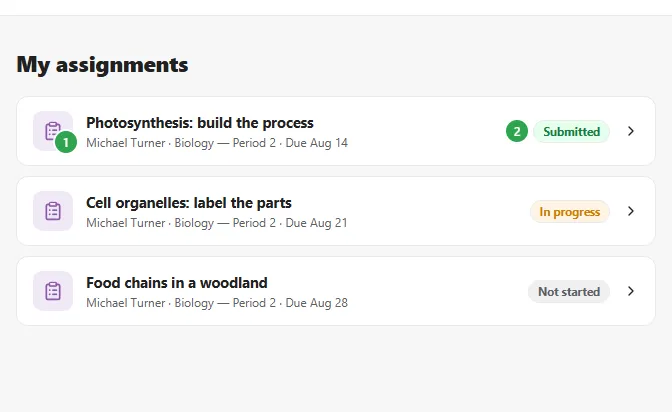
A card’s status is Not started, In progress or Submitted. Open the assignment to find out whether it has been graded. The card carries on saying Submitted even after your teacher has marked it. Clicking anywhere on a card opens it.
If your list is empty, you are in the class but your teacher has not given it an assignment yet. Anything they share with your class from now on turns up here on its own.
If you are not in the class yet
Section titled “If you are not in the class yet”You join the class once, and then every assignment your teacher gives it appears in My assignments by itself. There is nothing further to sign up for.
Open the join page your teacher points you at and type the Access code they read out or projected. Mindomo then asks for your name. If you have used that name here before, it asks for your PIN to check that it is you; if you are new, you pick a four-digit PIN, and that name and PIN get you back to your work on any device. If your teacher sent a join link instead, the code is already filled in and you only need to add your name. Joining a class covers this step by step.
What is on the assignment page
Section titled “What is on the assignment page”Everything you need sits on one page.
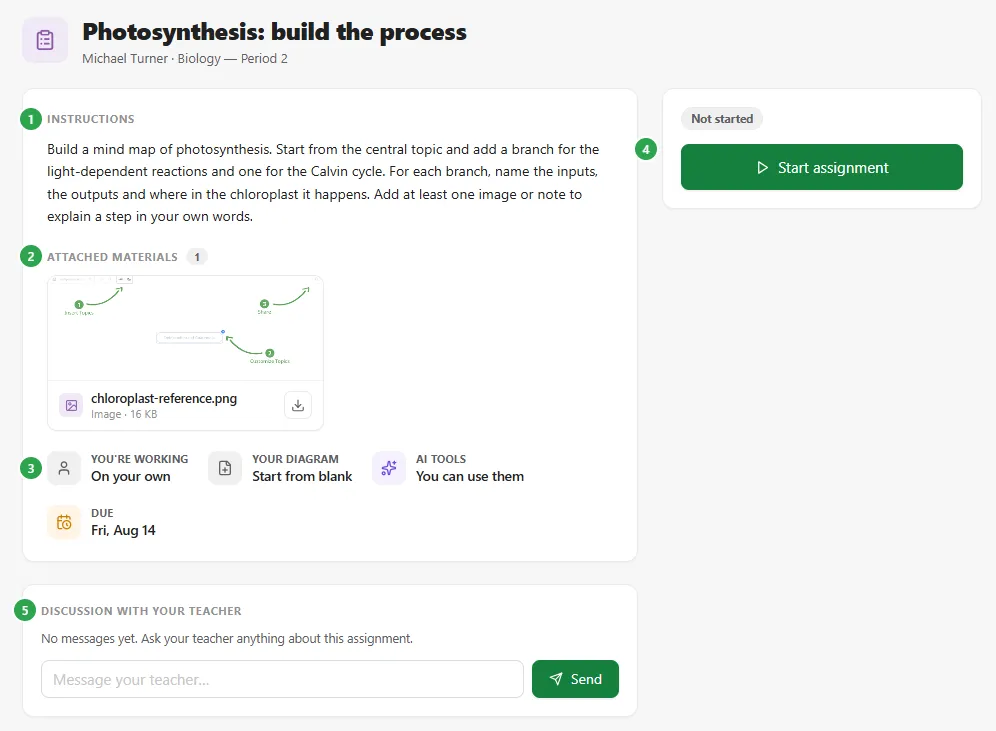
- Instructions: what you need to do.
- Attached materials: files your teacher added. Click one to look at it, or use the download button on it.
- The summary chips: You’re working (on your own, or in a group), Your diagram (start from blank, a copy of a template, or a shared diagram), AI tools (whether you may use them on this one) and Due.
- The action card. It only ever shows the buttons that make sense at this moment.
- Discussion with your teacher, for questions.
Once your teacher posts an announcement, an Assignment updates section joins them.
Doing the assignment
Section titled “Doing the assignment”Start it
Section titled “Start it”There is one button to begin with.
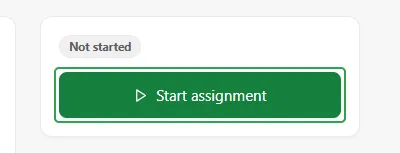
Start assignment creates your diagram and opens it in the editor, ready on a central topic. If your teacher picked a starting diagram for the class, the button says Make my copy & start instead, and you get your own copy of that diagram to work in.
Use the back arrow at the top left of the editor to return to the assignment.
Continue your work
Section titled “Continue your work”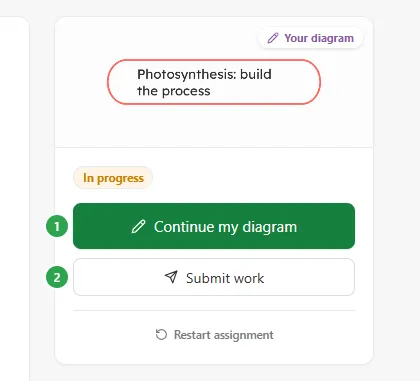
Continue my diagram (1) reopens your work (in a group assignment it says Continue shared diagram). Submit work (2) is underneath it, and Restart assignment below that. The card shows a small picture of your diagram as it stands, so you can see at a glance that your work is there.
Hand it in
Section titled “Hand it in”Submit work tells your teacher it is ready. It happens straight away; there is nothing to confirm.
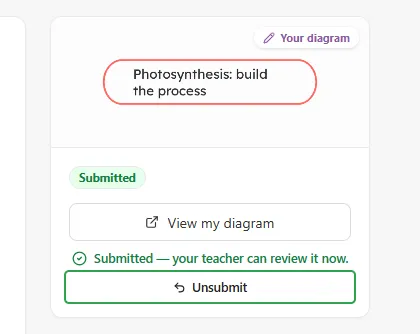
The card then reads Submitted: your teacher can review it now, and View my diagram still opens your work. If you were too quick, Unsubmit reopens the assignment so you can keep editing. Once your teacher has graded it, unsubmitting is no longer possible.
Start over
Section titled “Start over”Restart assignment throws away what you have done and gives you a fresh diagram. Mindomo makes you tick I understand this cannot be undone first, because it means all of this:
- your teacher will no longer be able to see your current work, and this diagram will be deleted
- on a name-and-PIN account it cannot be recovered from Trash: it is permanently deleted immediately
- it will not appear as your submission
- you start over with a new diagram: blank, or copied from the assignment’s template if it has one
Your grade and your teacher’s feedback
Section titled “Your grade and your teacher’s feedback”Once your teacher has marked your work, the status turns to Graded and a Teacher feedback block appears under the action card.
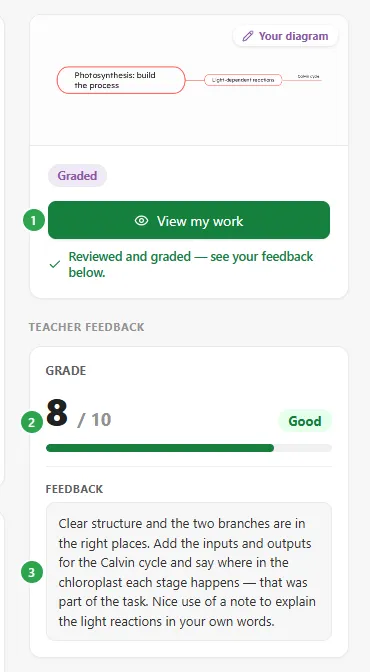
View my work (1) opens your diagram so you can read back through it. The grade (2) is shown on whichever scale your teacher chose for this assignment: points out of a maximum, a percentage against a pass mark, a letter, or complete and incomplete. Feedback (3) is what your teacher wrote about your work.
Asking your teacher a question
Section titled “Asking your teacher a question”Discussion with your teacher is a private thread about this one assignment. Use it before you start, while you are working, or after you have been graded.
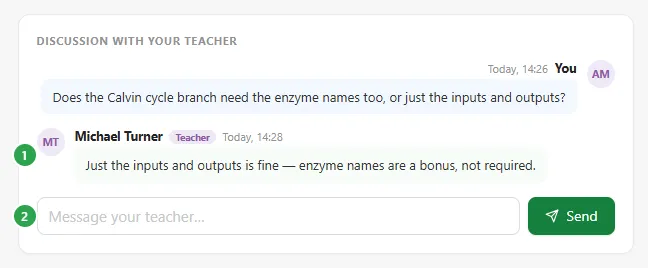
Replies from your teacher carry a Teacher tag next to their name (1). To write, type in the box at the bottom (2) and press Enter, or click Send. In a group assignment the thread is shared with your group, and the box says Message your teacher & group.
Working in a group
Section titled “Working in a group”If You’re working says In a group, you build one diagram together with your groupmates instead of one of your own. Nobody assigns the groups: instead of a start button you see Join a group, and you choose to start a new one or join one that already exists.
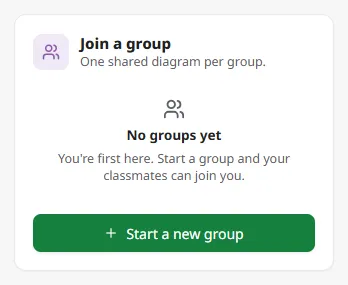
If you are first to arrive, Start a new group creates a group and drops you straight into its diagram: no naming, nothing to send. Groups are simply called Group 1, Group 2, and so on.
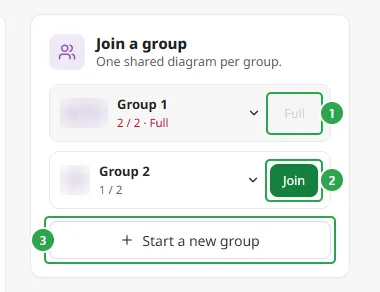
If groups already exist, you get a list instead: Join one with room, or Start a new group of your own. A full group shows Full and cannot be joined.
On an All together assignment there are no groups: everyone shares one diagram, and you just click Start assignment.
From then on, the buttons work on the shared diagram: Continue shared diagram reopens it, and two more sit below it.
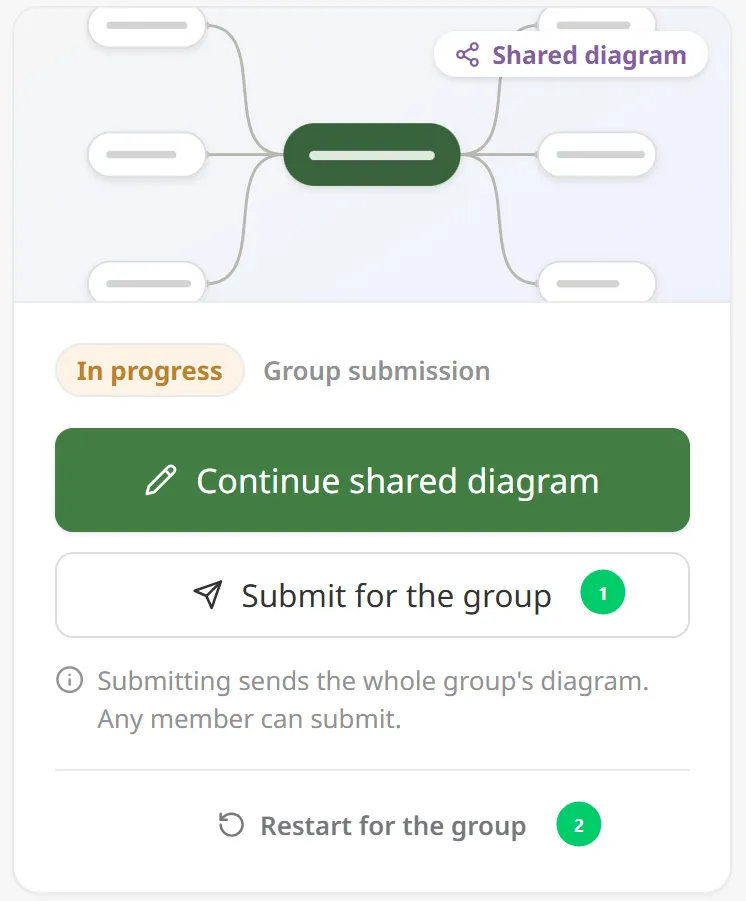
Submit for the group (1) hands in the whole group’s work (any member can do it on everyone’s behalf). Restart for the group (2) throws away the whole group’s diagram, not just your part of it, and gives everyone a fresh one. The grade and the discussion thread are shared with the whole group.
Mindomo makes you tick I understand this cannot be undone before restarting, because it means all of this:
- unlike regular accounts, the diagram cannot be recovered from Trash: it is permanently deleted immediately
- your teacher no longer has access to it, so it will not appear as your group’s submission
- your group starts over with a new diagram: blank, or copied from the assignment’s template if it has one
You can make changes in real time and chat with your groupmates as you work. Collaborating on mind maps covers what that looks like in the editor.
When you cannot change anything
Section titled “When you cannot change anything”Three things stop you working, and the assignment says which one it is:
- Assignment locked: your teacher has closed it for now. You can view your work, but not change it.
- This assignment is archived: it is read-only. Your work and your feedback stay where they are, but you cannot make changes, submit, or send messages.
- This assignment is no longer available: your teacher removed it. If you think that is a mistake, ask them. Go to my assignments takes you back to your list.
Who you are signed in as
Section titled “Who you are signed in as”Your name sits in the chip at the top right. Click it to check who Mindomo thinks you are.
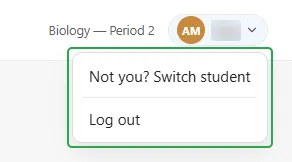
Not you? Switch student hands the device over to the next person, and Log out signs you out; both leave you on the join page. If you signed in with a full Mindomo account, this menu also has Dashboard, where the rest of your diagrams live. A name-and-PIN account has no dashboard, and My assignments is its home.
On a shared classroom device
Section titled “On a shared classroom device”If your class works on shared devices, Mindomo checks that it is still you when the device has been left alone for a while.
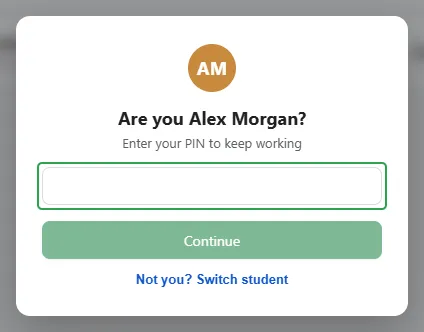
Type your PIN (or your password, if you signed in with an account) and click Continue. If somebody else is taking over, use Not you? Switch student instead. Sessions on these devices also end at the end of the school day.
Where to go next
Section titled “Where to go next”- Assignments: the same feature seen from your teacher’s side.
- Working with mind maps: how to build the diagram itself.
- Collaborating on mind maps: editing a shared diagram with other people.